Kết nối Windows instance
Kết nối Windows instance
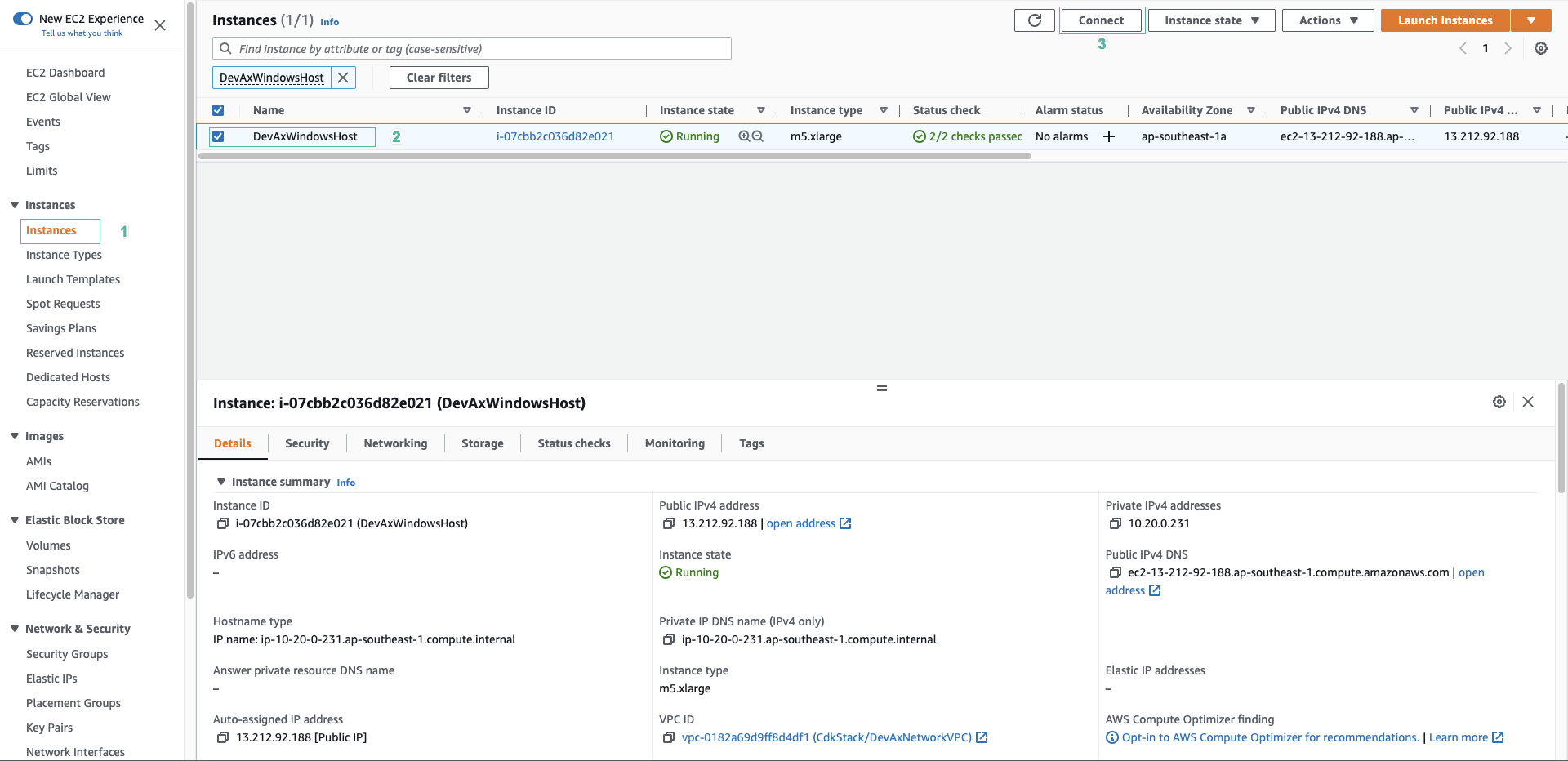
- Truy cập Amazon EC2 console.
- Trên thanh điều hướng bên trái, chọn Intances.
- Chọn DevAxWindowsHost.
- Click Connect.
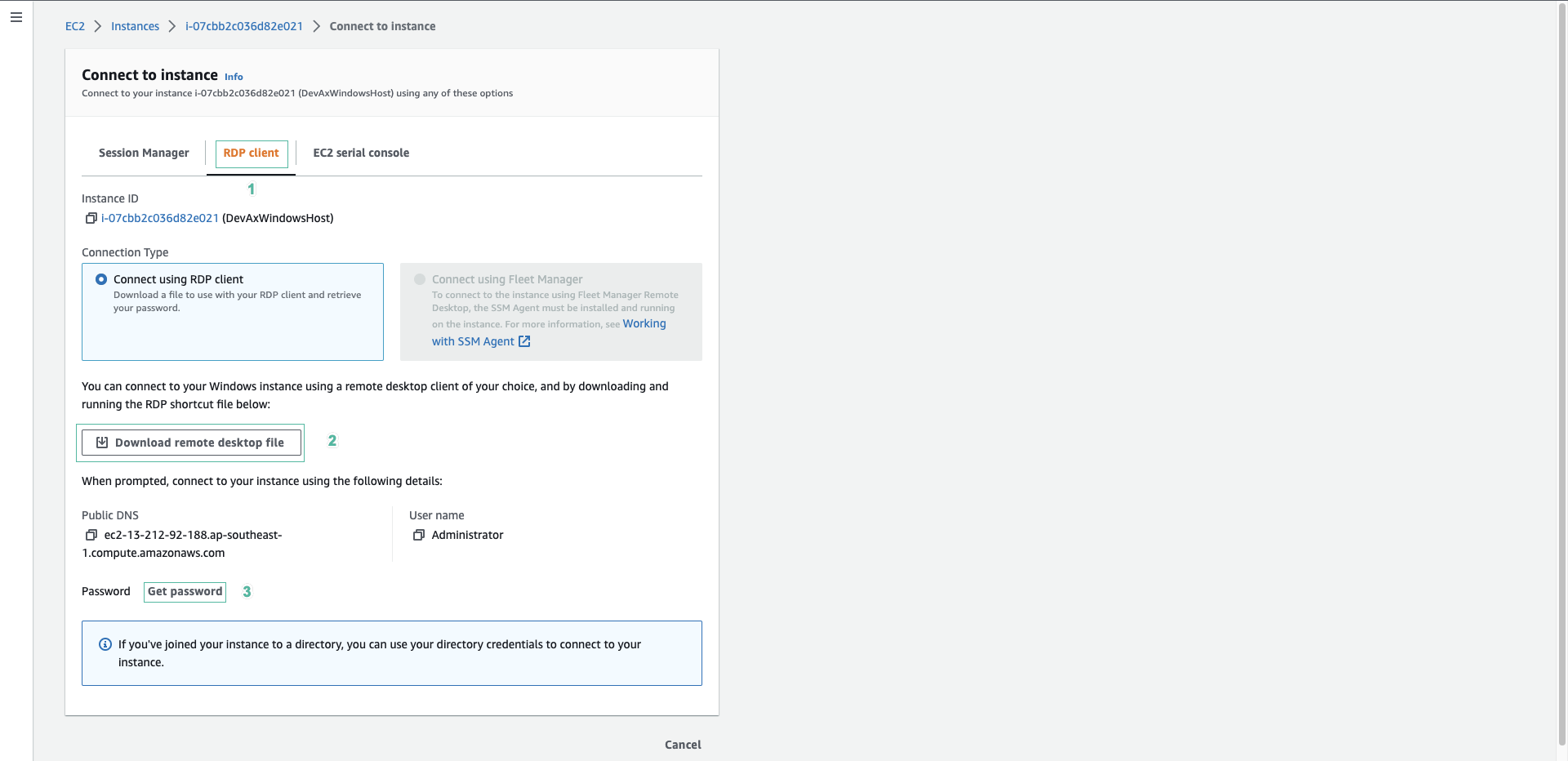
- Tại trang Connect to instance
- Click tab RDP client.
- Click Download remote desktop file. Chúng ta sẽ download file remote desktop xuống đường dẫn thư mục chứa key pair.
- Click Get password.
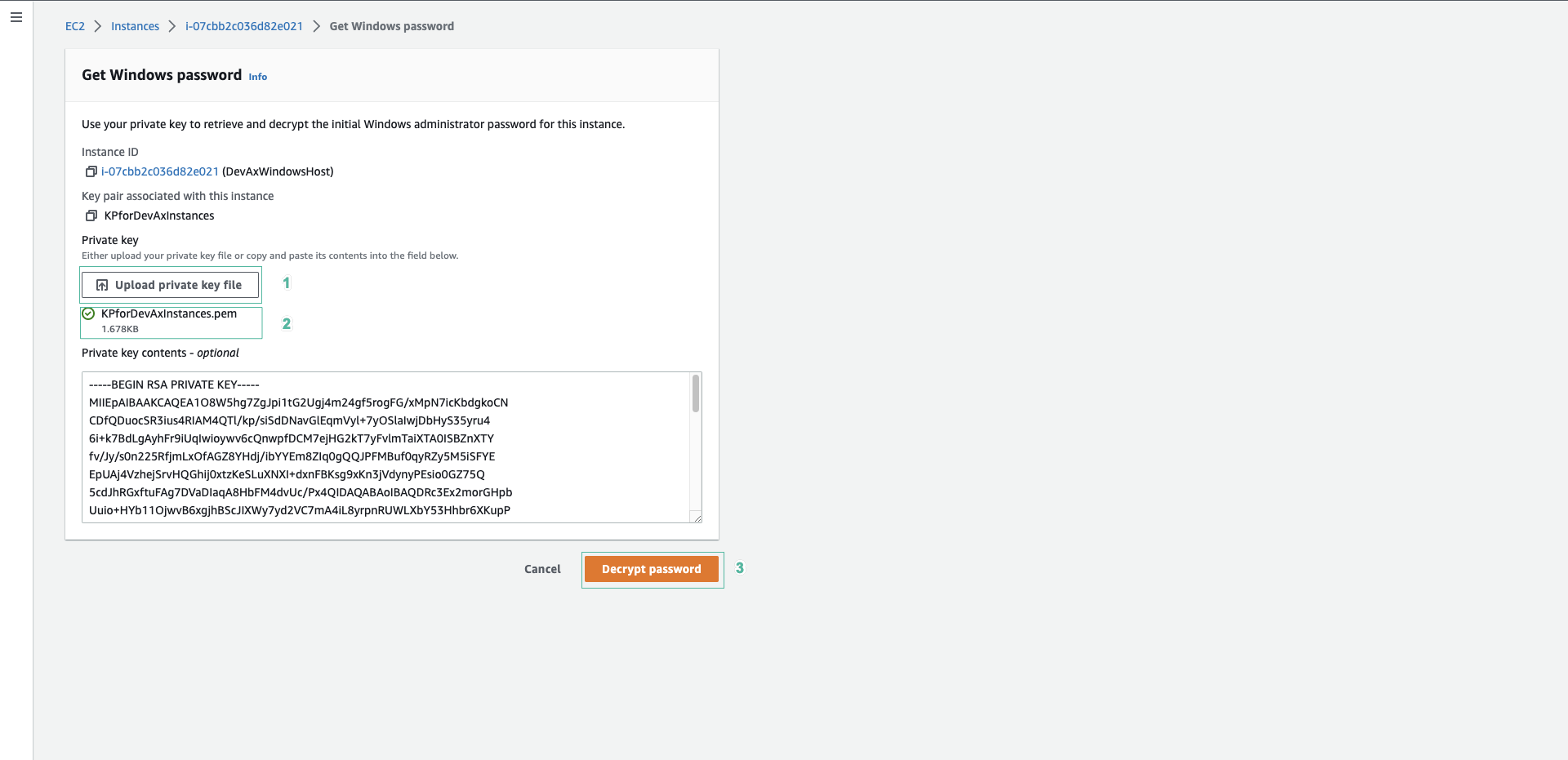
- Tại trang Get Windows password:
- Click Browse.
- Chọn file KPforDevAxInstances.pem đã tải về trong phần 1.1.
- Click Decrypt Password để giải mã thông tin password.
- Copy password đã được giải mã.
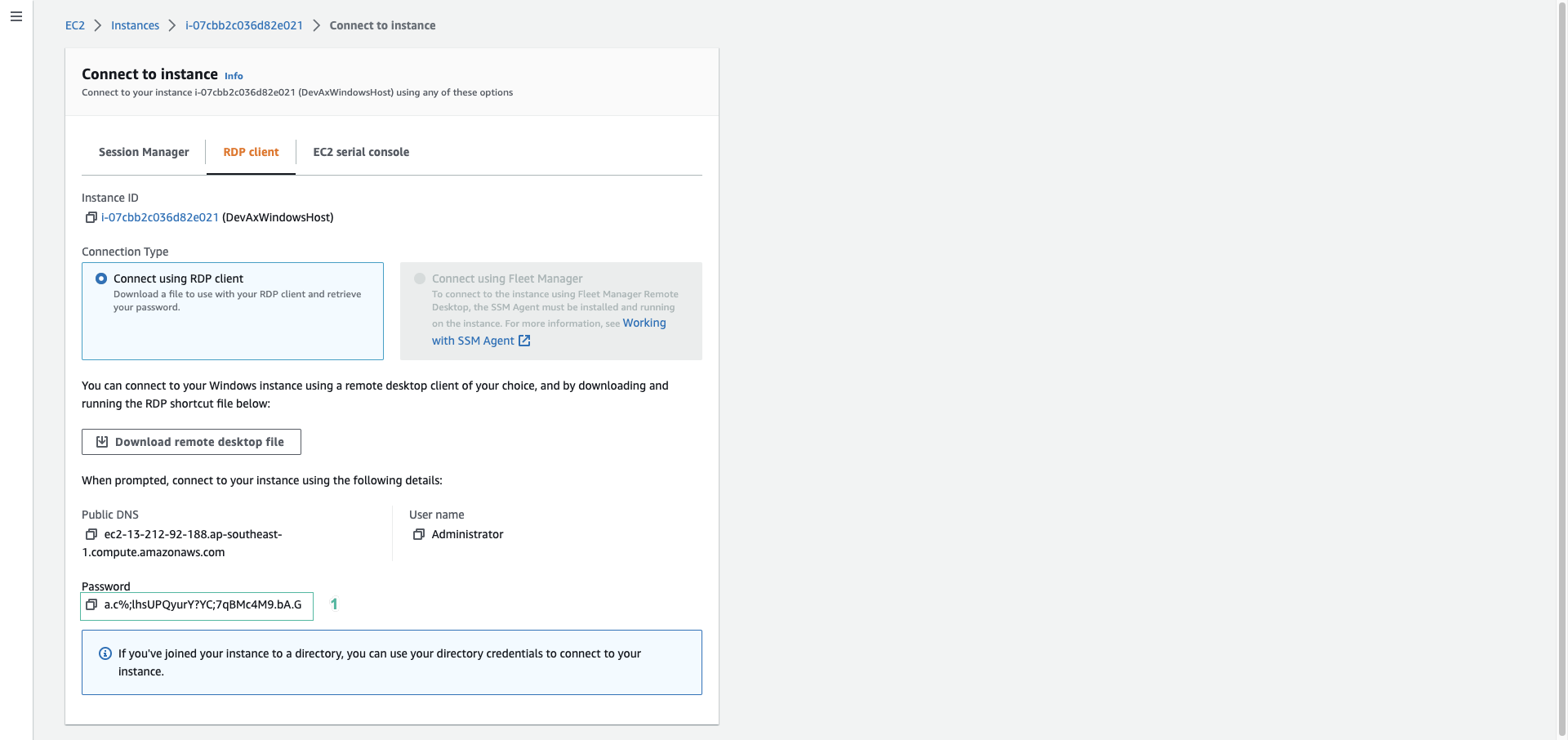
- Mở file DevAxWindowsHost.rdp bạn đã tải về trong bước 2.
- Click Connect.
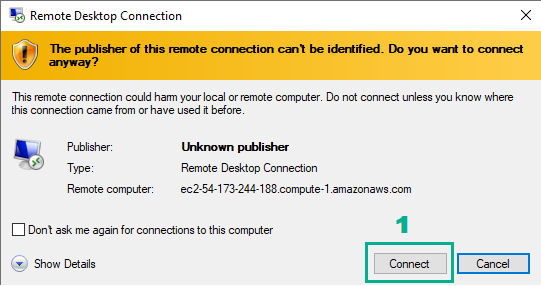
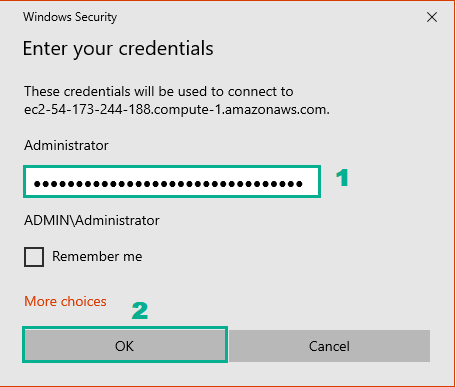
- Điền thông tin password đã copy trong bước 4
- Click OK.
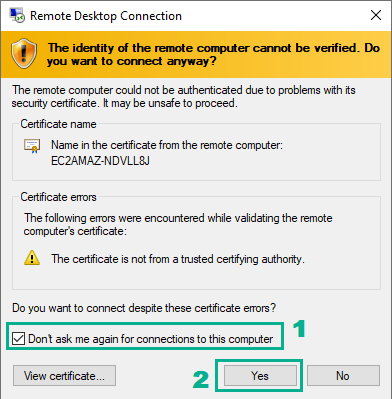
- Click Don’t ask me again for connections to this computer.
- Click Yes.
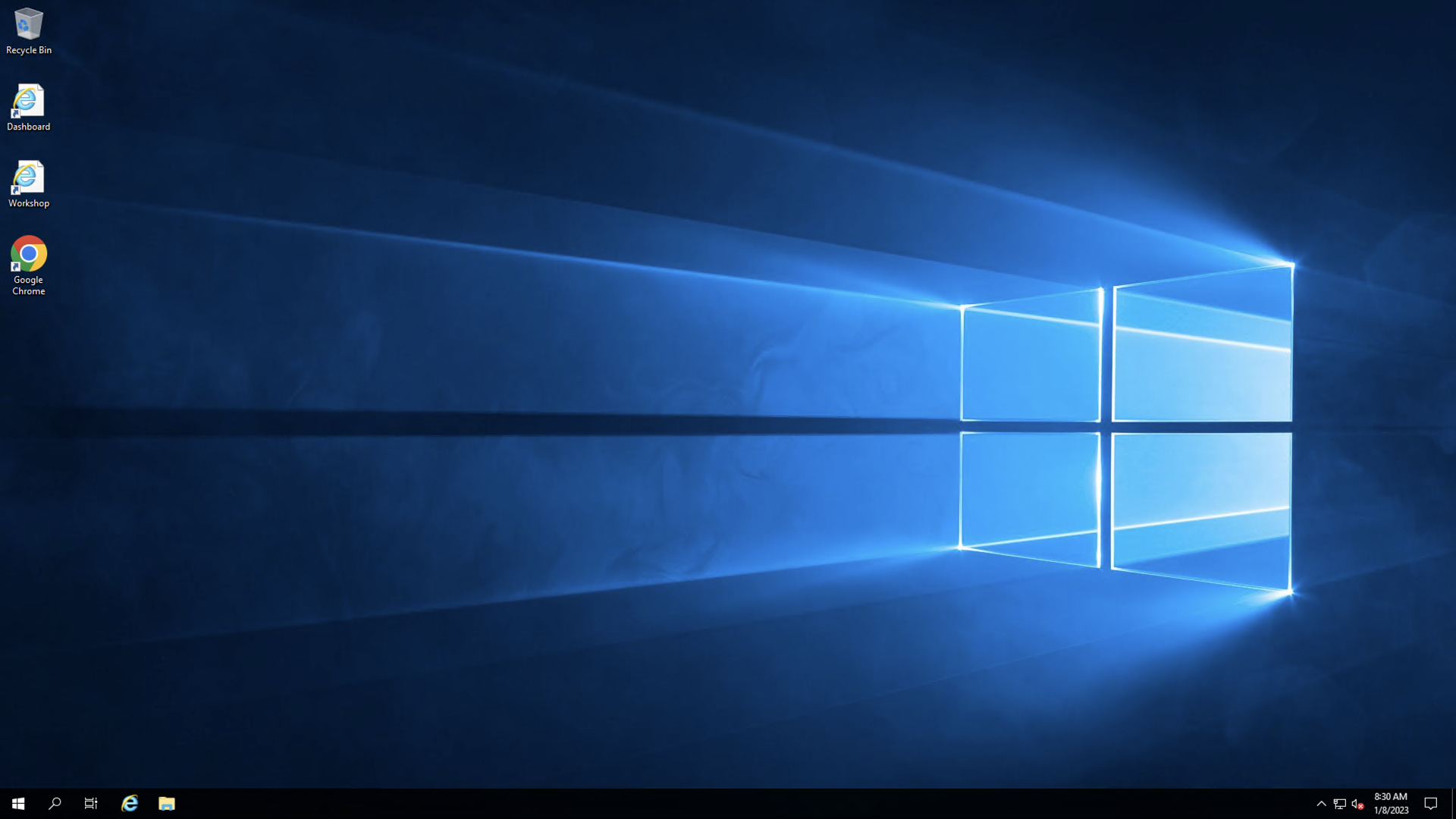
- Bạn đã kết nối thành công.
Cấu hình AWS CLI
- Gán quyền Administrator Access vào user awsstudent được tạo bởi Cloud Formation template
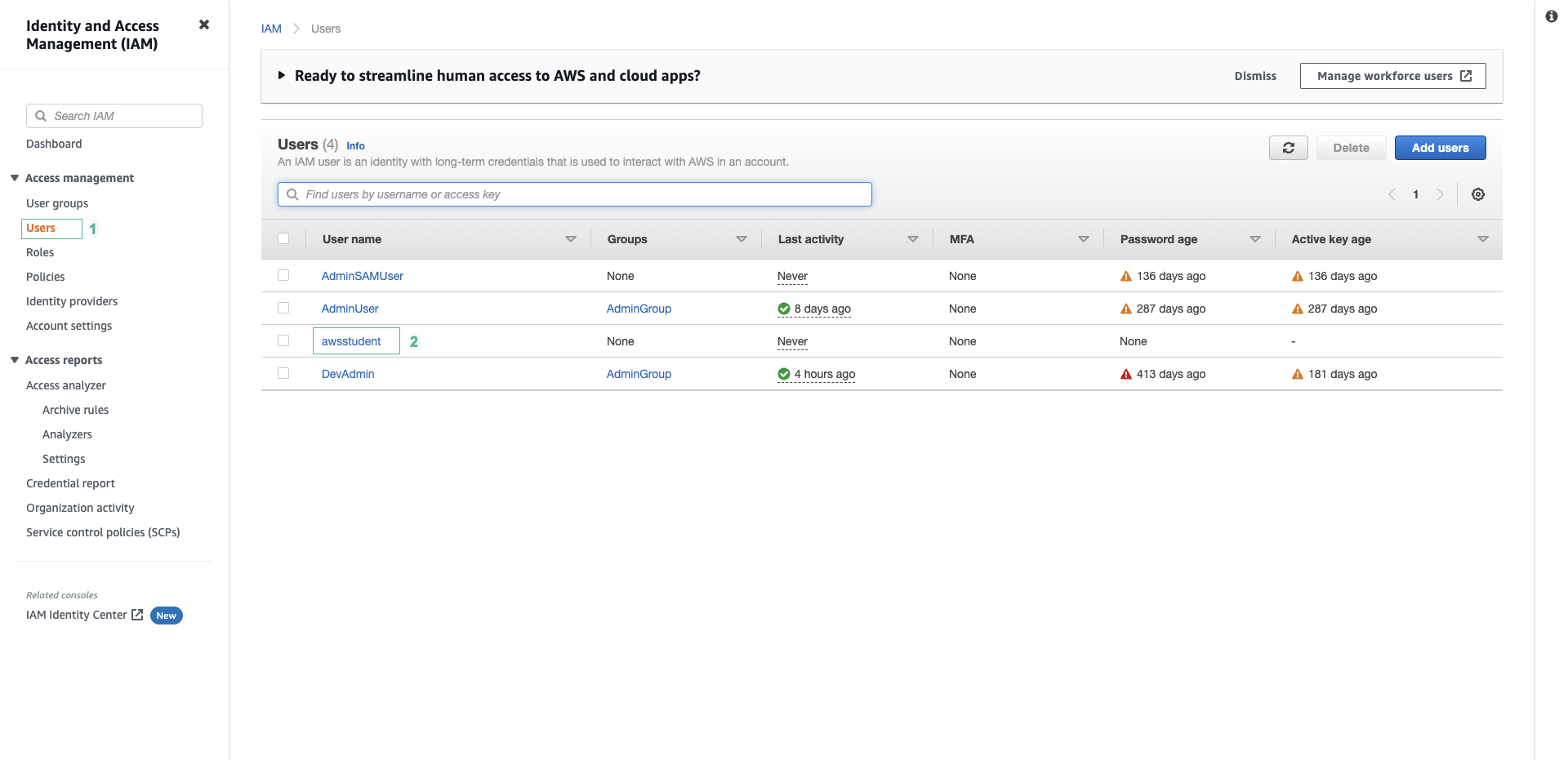
- Truy cập vào AWS IAM Console.
- Click Users.
- Click user awsstudent
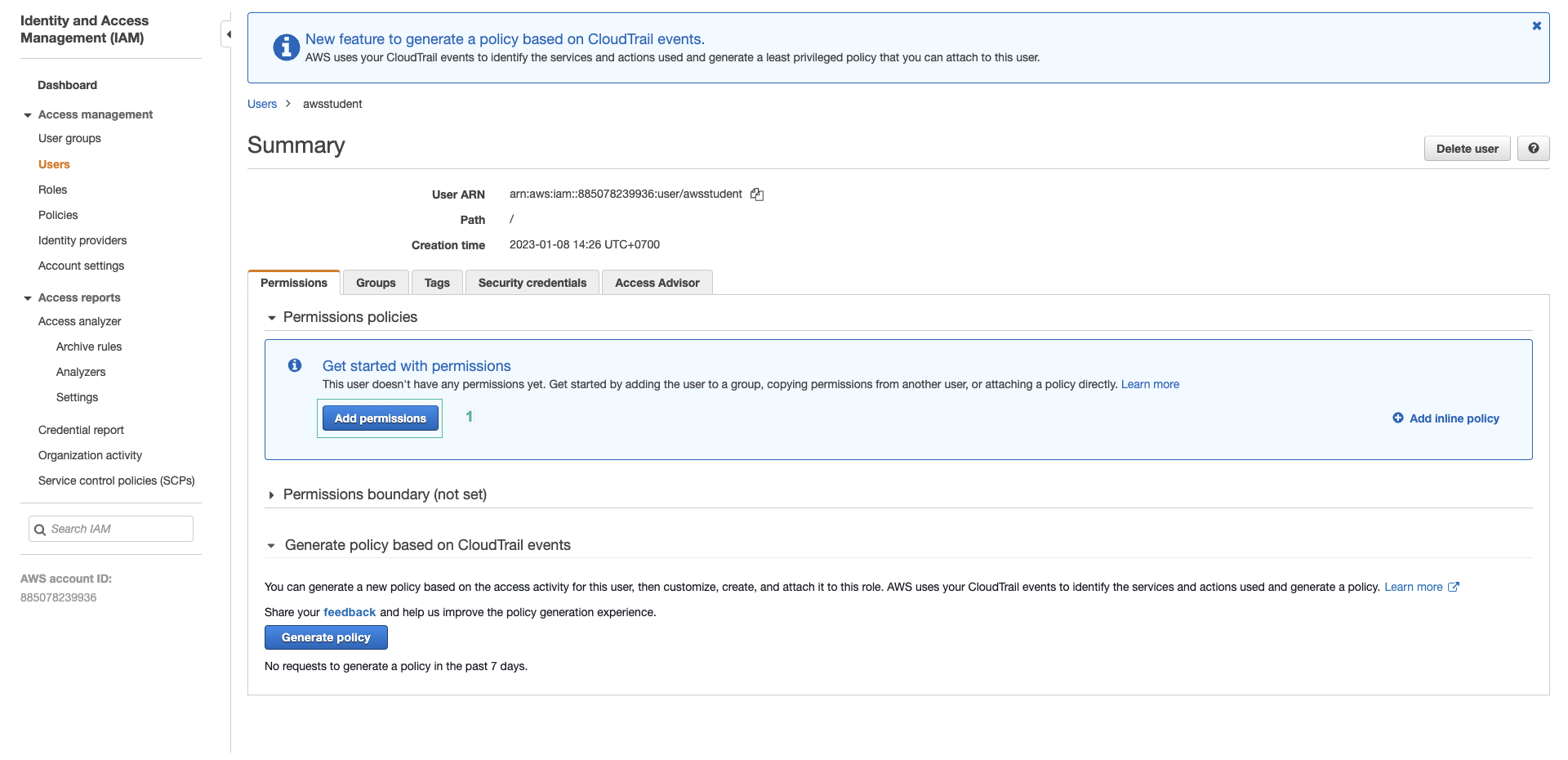
- Trong phần Permissions policies
- Click Add permissions
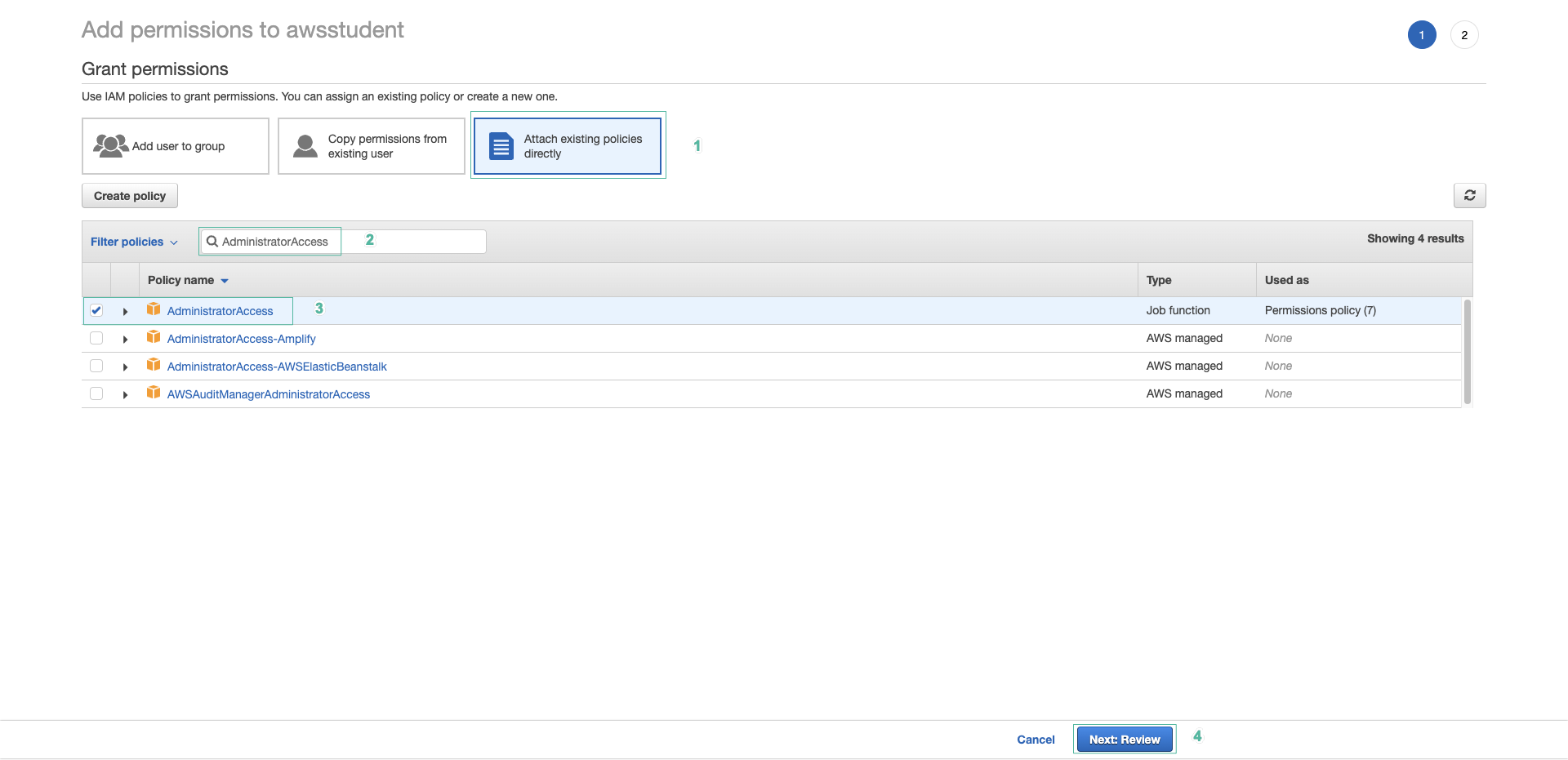
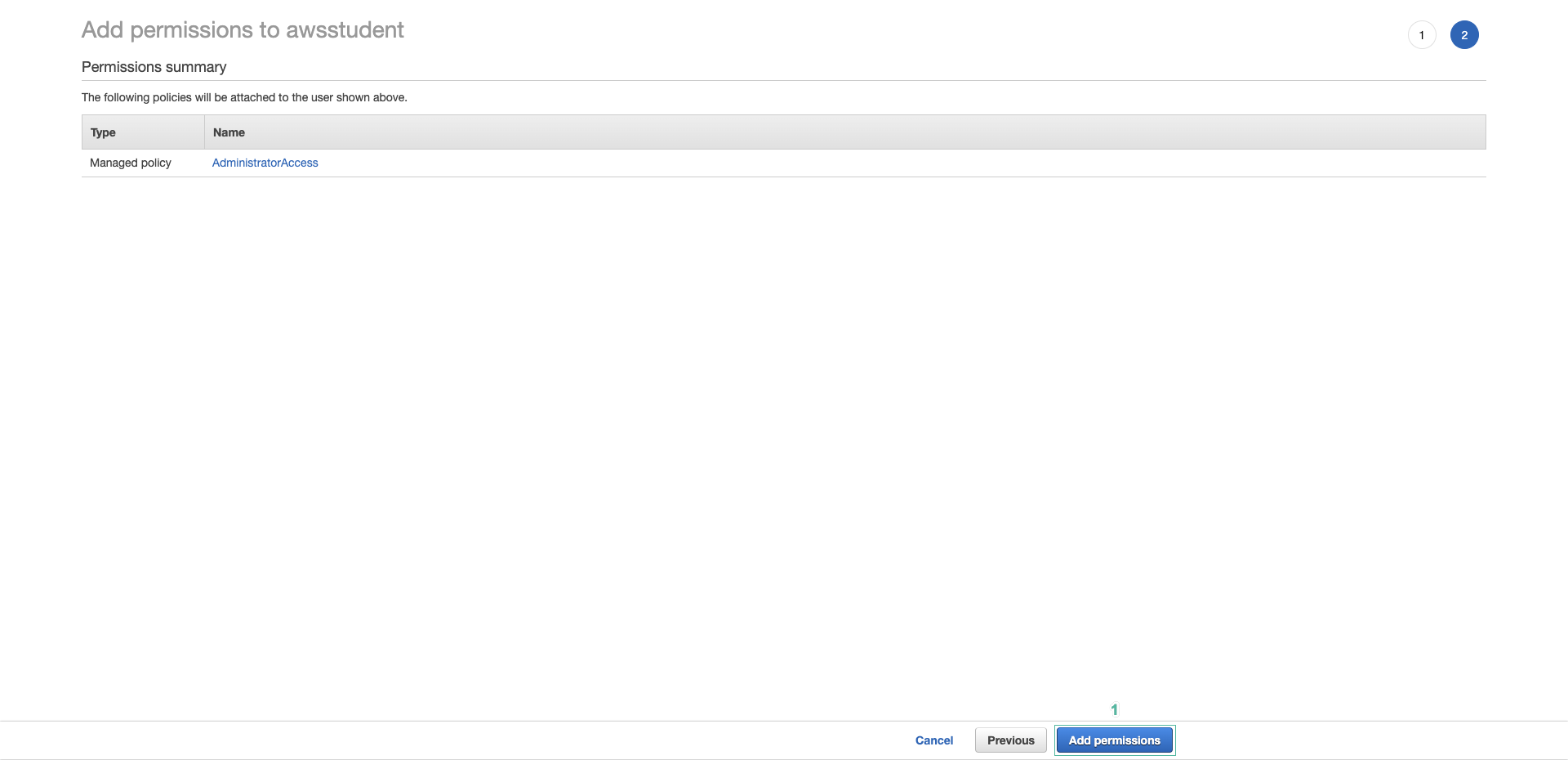
- Trong trang Add permissions to awsstudent
- Click Attach existing policies directly
- Gõ
AdministratorAccessvào ô tìm kiếm. - Chọn AdministratorAccess
- Click Next:Review
- Click Add Permission
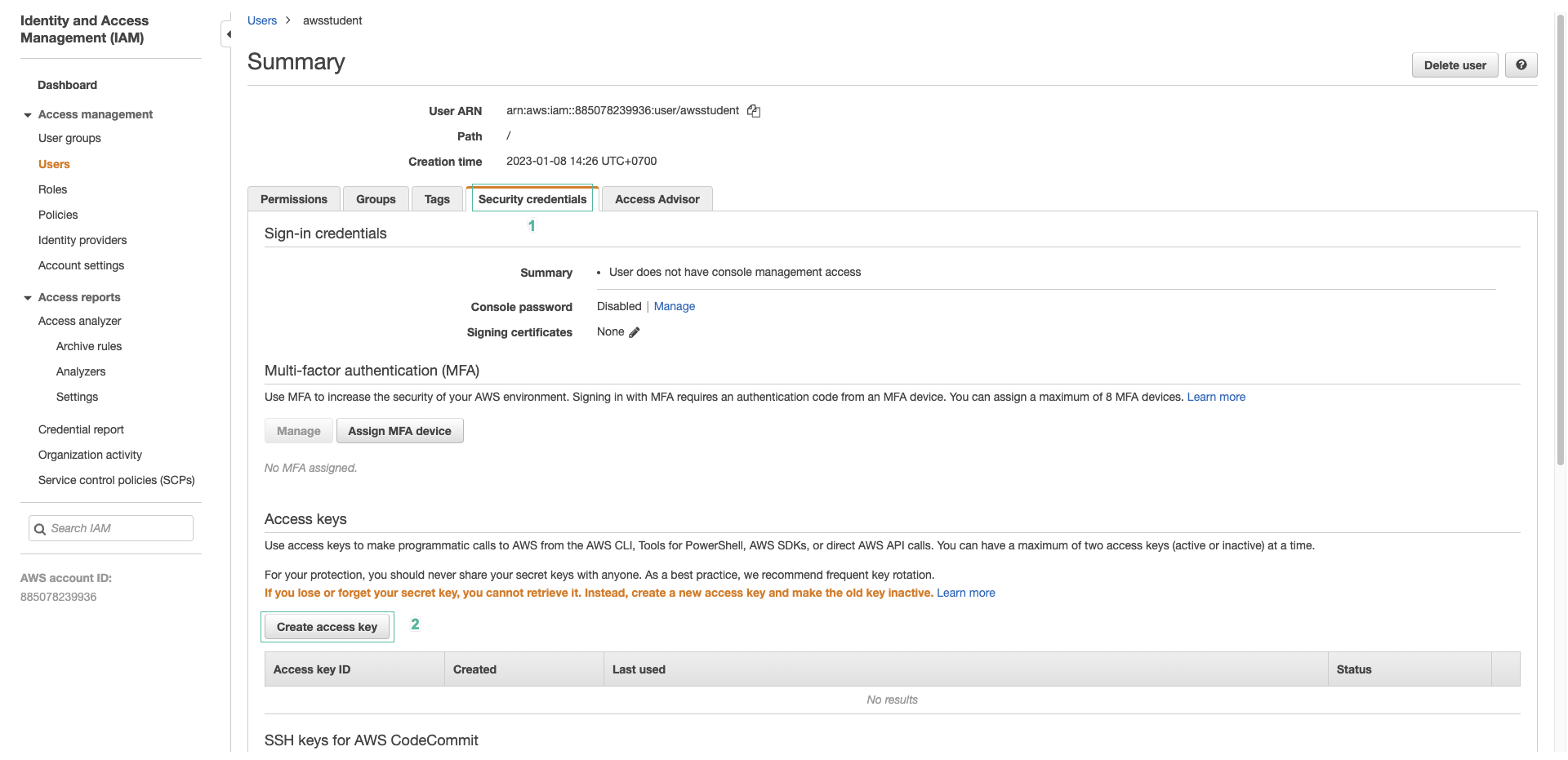
- Click tab Security credentials
- Click Create access key để tiến hành tạo access key
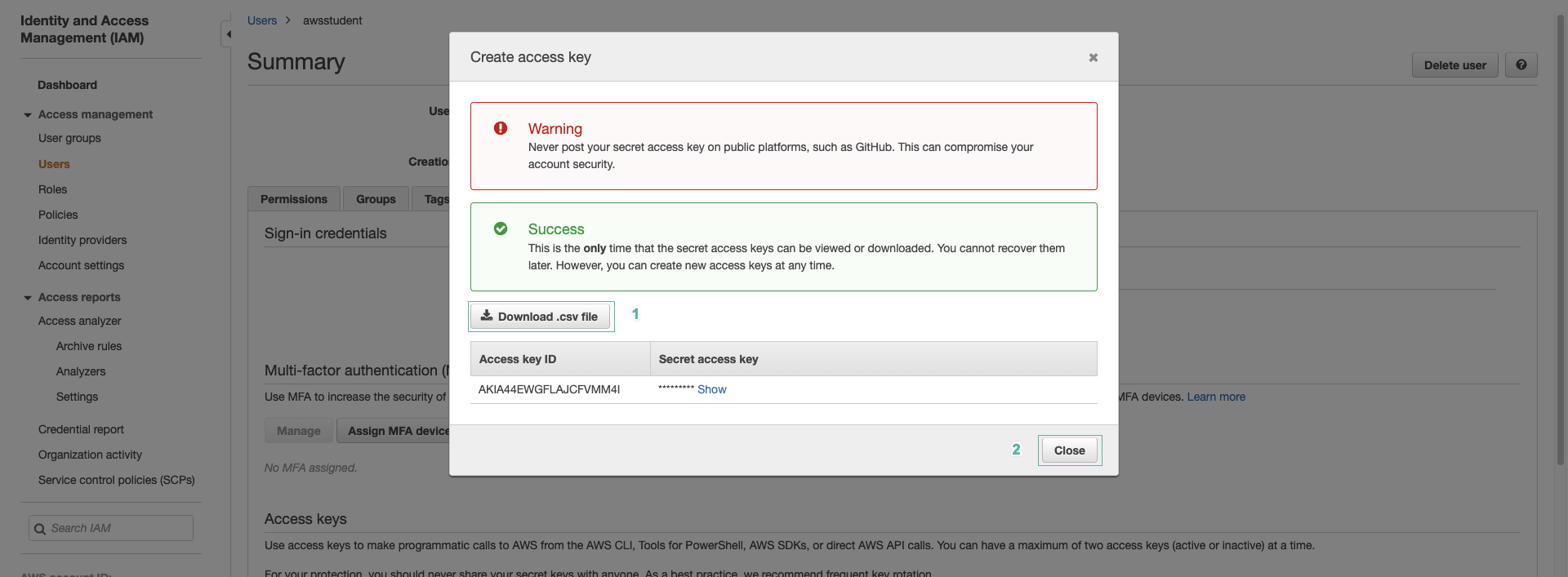
- Ấn nút Download .csv file để lưu thông tin Access key và Secret access key để phục vụ cho bước tiếp theo
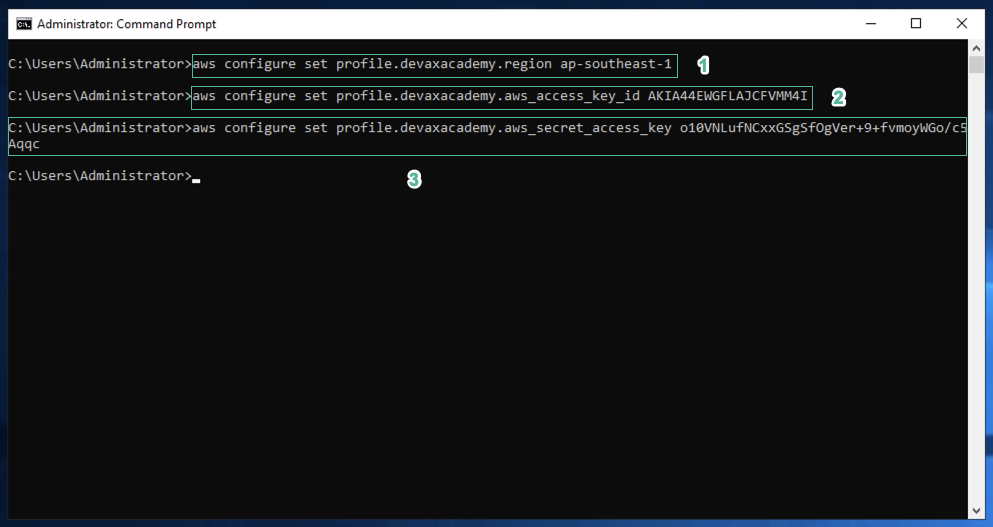
- Chạy lệnh dưới đây
aws configure set profile.devaxacademy.region <your_region>
aws configure set profile.devaxacademy.aws_access_key_id <access_key_id>
aws configure set profile.devaxacademy.aws_secret_access_key <secret_access_key>
Thay <your_region> bằng Region code
Thay <access_key_id> bằng Access Key Id bạn đã lưu về trong bước 6
Thay <secret_access_key> bằng Secret Access Key bạn đã lưu về trong bước 6